
Have you ever thought that a simple spreadsheet could change the way you manage your money? Picture a tool that not only tracks every dollar you spend but also clears up the mystery of saving. Today, we'll look at two budget templates that might help guide your spending in a smarter way.
One template works like a dependable Excel file where you can easily input your numbers. The other uses a shared Google Sheets format that makes it simple to see everything at a glance. Both options have colorful, intuitive layouts that make tracking your expenses feel almost like a fun project.
Ready for a little financial tune-up? Give one of these templates a try and see how quickly you can start saving smartly, one click at a time.
Essential Budget Spreadsheet Templates and Quick Start Guide
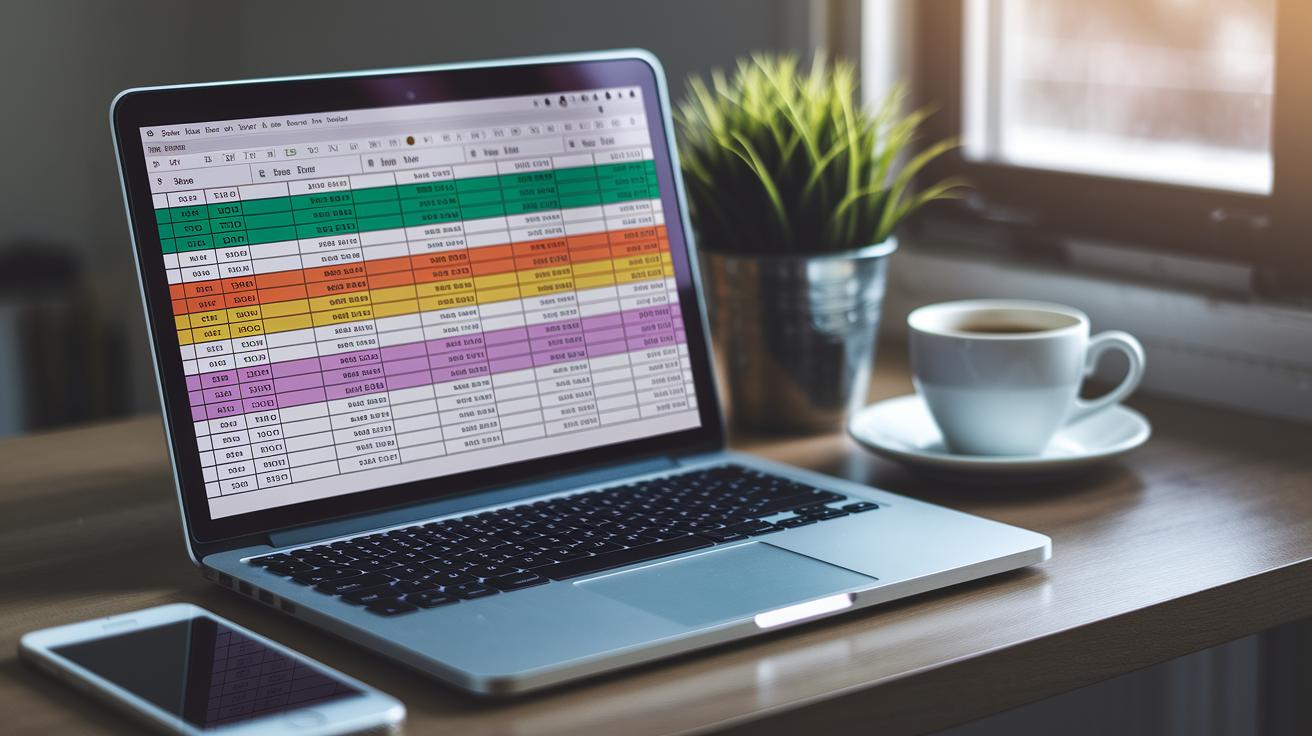
Budget spreadsheet templates come in a mix of free and paid options designed for different money needs. Even if you’re new to tracking spending, these tools make it easy to manage your cash. Some templates give you detailed layouts for logging income and expenses, while others spice things up with color-coded sections and monthly calendars. It’s like having the perfect recipe for your finances, whether you choose a dynamic PDF from the FTC or a simple printable worksheet, there’s a design that fits just right.
Excel templates are a favorite for many because they pack robust tracking features. And if you prefer working on the go or with a buddy, Google Sheets finance planners offer real-time collaboration that makes budgeting feel like a joint effort. For instance, the Tiller Foundation template automates daily spending logs in both Sheets and Excel. Meanwhile, NerdWallet’s 50/30/20 rule spreadsheet breaks your income into needs, wants, and savings to show you a clear picture, and their Instant Budget Calculator makes tweaking budgets a breeze. Tools from RegPaq and 20 Something Finance even add visual monthly calendars to help you keep an eye on your expenses.
Ready to get started? You can easily download these tools by checking out our resource links. Visit our personal budgeting template page for a direct download, browse through budgeting tips for setup ideas, or explore free budget planning online for extra help. Each option is designed to keep your money in clear view and support smart savings every step of the way.
Customizing Budget Spreadsheet Layouts for Your Goals

Customizing your budget spreadsheet makes it so much more than just a basic tool, it turns it into a real helpmate for managing your cash. You can play around with things like colorful categories in your Expense Tracker or add a weekly view to see where your money goes. It’s like giving your spreadsheet a personal touch that fits your life.
And the neat part is, tools like the Tiller template let you change category names and even adjust income percentages in your 50/30/20 calculator. This means you can easily split your money your way. For example, you might create drop-down menus in your RegPaq sheets to make everything super simple and easy to follow.
Here are some of the tweaks you can make:
- Change category names and pick new colors
- Add or remove columns for income or expenses
- Create weekly or monthly summary sections
- Tweak percentage splits in your 50/30/20 setup
- Use custom drop-down menus
- Link different sheets for bills and savings
Once your layout feels just right, save it as a template. This way, every time you open your spreadsheet, you’re set up to chase your unique financial dreams and keep making smart choices with your money.
DIY Budget Calculator: Building Your Spreadsheet from Scratch

Creating your own budget calculator gives you complete control over your money tracking, and it feels great knowing you’ve built something just for you. Using Google Sheets makes it practical, fun, and perfectly tailored to your needs. It’s an awesome way to see every dollar coming in and going out, so you can keep everything balanced.
Step 1: Set Up Your Workbook
Start by opening a new workbook and making separate sheets for different parts of your finances. Create one sheet for income, another for expenses, and a summary page that brings all the key totals together. This setup keeps things organized and makes it really easy to update your numbers.
Step 2: Define Categories and Labels
Next, list out all your spending categories and income sources clearly on each sheet. You can use one combined form for both income and expenses or separate them, whichever suits you best. Clear labels act like signposts, helping you see exactly where your money is headed and making the whole process feel personal.
Step 3: Implement Core Formulas
Now it’s time to add some simple formulas that do the math for you. Use SUM formulas to add totals and IF formulas to alert you if you’re overspending. For example, you can set up a formula to subtract your total expenses from your income to find your monthly balance. These formulas are the backbone of your calculator, ensuring that your numbers are always accurate.
Step 4: Add Data Validation and Formatting
To make your spreadsheet even more user-friendly, add drop-down menus for selecting your categories and use conditional formatting to highlight any overspending. These extra touches help reduce errors and make your budget visually clear and engaging.
Step 5: Test Entries and Troubleshoot
Finally, plug in some sample data to make sure everything works smoothly. Testing your entries helps you catch small mistakes that might affect your totals later on. And don’t forget to save different versions and back up your files regularly, this keeps your custom spreadsheet secure and ready to grow with your financial journey.
Tracking Income, Expenses, and Savings Efficiently in Your Budget Spreadsheet

Start by building a simple ledger for your income, expenses, and savings. Put each in its own section or sheet. This clear system combines DIY budget tools with a layout that fits your style.
Let formulas do most of the work. Use the SUM function to add up your totals for each day and month. For example, type SUM(B2:B20) in a cell to quickly see your monthly income. Every update happens automatically, saving you from extra manual work.
Keep your transactions tidy by using drop-down menus and filters. For instance, include choices like "Bills," "Groceries," and "Leisure" in your drop-down list. This makes it really easy to sort your spending when things change.
Give your data a visual boost with tools like pie and bar charts. A pie chart can instantly show you the balance between spending and savings. This visual snapshot helps you understand your cash flow at a glance while keeping everything neat and simple.
Advanced Budget Spreadsheet Features with Forecasting and Reporting

Imagine a tool that not only keeps track of your spending, but also shows you what the future might hold for your budget. It’s like having a little crystal ball for your money. These advanced spreadsheets include forecasting features so you can see upcoming expenses and expected income. Think of it like planning your monthly meals but for your finances, annual templates lay out your money plan for each month, and calendar-style layouts mark when bills are due. And with what-if formulas, you can play around with different spending ideas to see their effect on your overall budget before you commit. It’s a smart, forward-looking strategy that helps you get ready for surprises along the way.
But there’s more. Modern spreadsheets also come with reporting tools that give you a real-time look at your financial health. Automated dashboards mix charts with pivot tables to display spending, income, and any gaps between your plan and what actually happens. This means you can quickly see if your budget is off track and make changes right away. Interactive charts let you instantly know if you’re overspending or saving more than planned. By streamlining these processes, you spend less time crunching numbers and have more time to make informed money decisions.
| Feature | Description | Benefit |
|---|---|---|
| What-If Analysis | Data tables help you test changes in expenses and income | Shows the effect on your budget |
| Automated Dashboards | Charts and pivot tables that update live | Quick visual updates on your financial status |
| Calendar View | Monthly layout with clear due dates | Avoids missing bill payments |
| Variance Reports | Compare planned spending against what really happened | Helps spot and fix budget gaps |
Printable and Mobile-Friendly Budget Spreadsheet Options

Printable worksheets are a great way to manage your money when you’re not connected to the internet. You can turn Excel files into PDFs and print your budget, making it easy to see your spending on paper. These templates break down your income and expenses in clear detail, so you always have a handy record at your side. Imagine checking off your spending goals each month like a simple checklist.
Printing your budget is especially handy if you prefer working with a paper trail. With a free Google Sheets account, you can use templates that convert to PDF without costing extra. Just adjust your printer settings to keep that neat layout you like. This method makes sure you can review your financial picture anytime, even offline.
Mobile apps for Sheets on both iOS and Android bring budgeting right to your fingertips. They offer simple, clear layouts perfect for adding expenses on the go. With these apps, you can jot down costs as they happen, keeping your budget up to date and helping you feel confident about your savings choices.
Best Practices for Maintaining Your Budget Spreadsheet

When you download a budget spreadsheet or put together your own finance workbook, always use trusted websites. This helps keep malware and other threats away from your computer. It's wise to pick your expense tracker or household organizer from sites you know are secure. Many folks have dodged costly security hassles by choosing well-known providers.
It really pays off to review your spreadsheet regularly. Each month, take a moment to compare what you actually spent with your planned budget and check if any category names need a tweak. For example, if you see a sudden spike in your tracker, that could be your cue to double-check your bank statements and receipts.
And don’t forget to back up your data. Save different versions of your spreadsheet in the cloud and keep older files stored away. This way, you protect your history of financial decisions and keep your personal finance workbook accurate and running smoothly.
Final Words
In the action toward smarter money habits, we explored a range of tools and tips designed to simplify your budgeting process. The article broke down options from free Excel templates to interactive Google Sheets, offering clear ways to set up, track, and refine your spending plan.
We also shared how tweaking your own layout can make management easier and more intuitive. By using a budget spreadsheet, you’re taking real steps toward financial confidence and a more secure future.
FAQ
What types of budget spreadsheet options can I choose from?
The budget spreadsheet options range from Etsy templates, free downloads in PDF, Excel, and Google Sheets to simple monthly expense sheets. They help simplify tracking spending and savings.
What is the best spreadsheet for a budget?
The best spreadsheet for a budget depends on your personal needs and comfort with technology. It’s often an Excel template or a free Google Sheets setup that automates totals and visual charts.
What is the 50 30 20 budget rule?
The 50 30 20 budget rule divides your income into needs, wants, and savings. It guides spending by setting aside 50% for essentials, 30% for extras, and 20% for savings or debt payments.
How do you make a budget spreadsheet?
Making a budget spreadsheet involves setting up income, expense, and savings categories, listing monthly figures, applying formulas for totals, and labeling sections clearly to keep your finances organized.
What is the 50 30 20 rule in Excel?
The 50 30 20 rule in Excel uses formulas to split income into needs, wants, and savings. After inputting income and percentages, Excel calculates allocation amounts, ensuring your budget remains balanced.